Blog

Posted in Uncategorized

How To know Wi-fi Passwords

Hi Guys, This is Goutham From DIY Blogger . We are back with one of the intresting topic “How To know wi-fi passwords” easily using command prompt

Before going to start , If you have any queries please post a comment, so that I can interact with you.

Step 1 :

Open Command Prompt in your pc

Step 2 :

Then write the below code to know the how many wi-fi that you had in the past

NETSH WLAN SHOW PROFILE 

You will see a list of wi-fi that had connected in the past. Then select the network that you want to explore right now

Step 3 :

Type the following code to know the their password

NETSH WLAN SHOW PROFILE WIFI KEY=CLEAR 

In the place ” WIFI” you have replace the network name and click on enter

After clicking on enter scroll down then at the last you will find the Password in the “key content”

For more information you can also follow me on my instagram : goutham_0306 and you
Posted in Home Automation

Simple Home Automation In just 5 minutes

Hi Guys welcome back to diy blogger.

Today we are going to learn about A simple home automation project in just 5 minutes. After your completion this article you can able to setup a basic knowledge on home automation

Materials required :

1.LED (any color)

2.Bluetooth Controller(1)

3.Arduino uno

4.Bread board

Steps to Follow :

1. Set up the environment

2.Give the proper connection

You can refere to our website or you can follow the below circuit connections.

3.Upload the source code

Source code :

/*coding part*/

4.Upload the code into the arduino

If you any errors while uploading you can reach us

Precautions : Give the proper connections otherwise the led won’t be turn on.

For more :

Follow my website & my YouTube channel

You can also follow me on my Instagram

@goutham_0306

Posted in Face Detection

How To capture a video using open cv

Hi there, This is Goutham From DIYblogger. Once again we are back with a interesting post.

In this blog we will going to discussing about How to capture a video using open cv python module

Let’s get start

Step 1: You should be clear whether you have installed python open cv module in your computer or laptop.

Step 2: Open Your Favorite code editor.

Step 3: Source code

import cv2

video = cv2.capture(0)

It means that we are using our laptop camera to capture the video or you can “1” also. In case if you are using your Webcam then you can mention your ID in that brackets.

while(True):

res,cap = cv2.imshow(video)

cv2.WaitKey(5)

If you have any doubts regarding this post you can approach me by simply post a comment.

For more information you can follow me on instagram (goutham_0306).

Posted in simple projects

How to make a simple project for school students

How to create a simple project For school Students

Hi guys, This is Goutham From DIY blogger.

In this new post we will know about how to create a simple project for school students in just 10 minutes.

So, let’s get started with out wasting of time

Materials required :

1.Card boards

2.sketches

3.News papers

4.Crayons

Steps to Follow:

1.

2.

3.

4.

5.

6.

Watch the video for better understanding

7.So guys , still if you have doubts please just post your comment in the comment box we will surely approach you.

8.For more information You can visit our website and our YouTube channel

Links part

9.You can also follow me on instagram

Posted in scienceDIY

How to make a Small robot at home

Hi there, This is Goutham From DIY blogger. We have come across with a simple and low cost DIY once again for you.

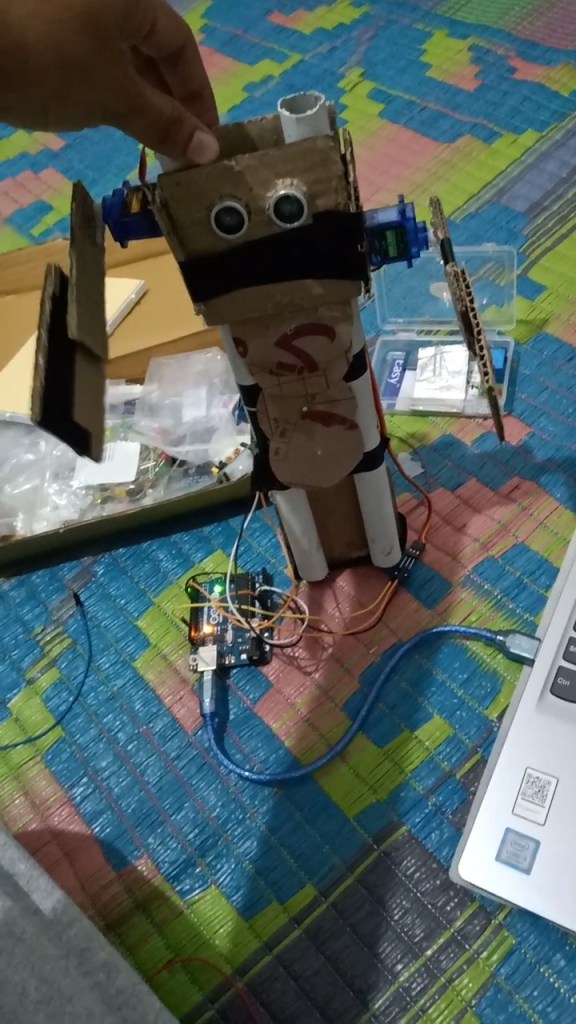
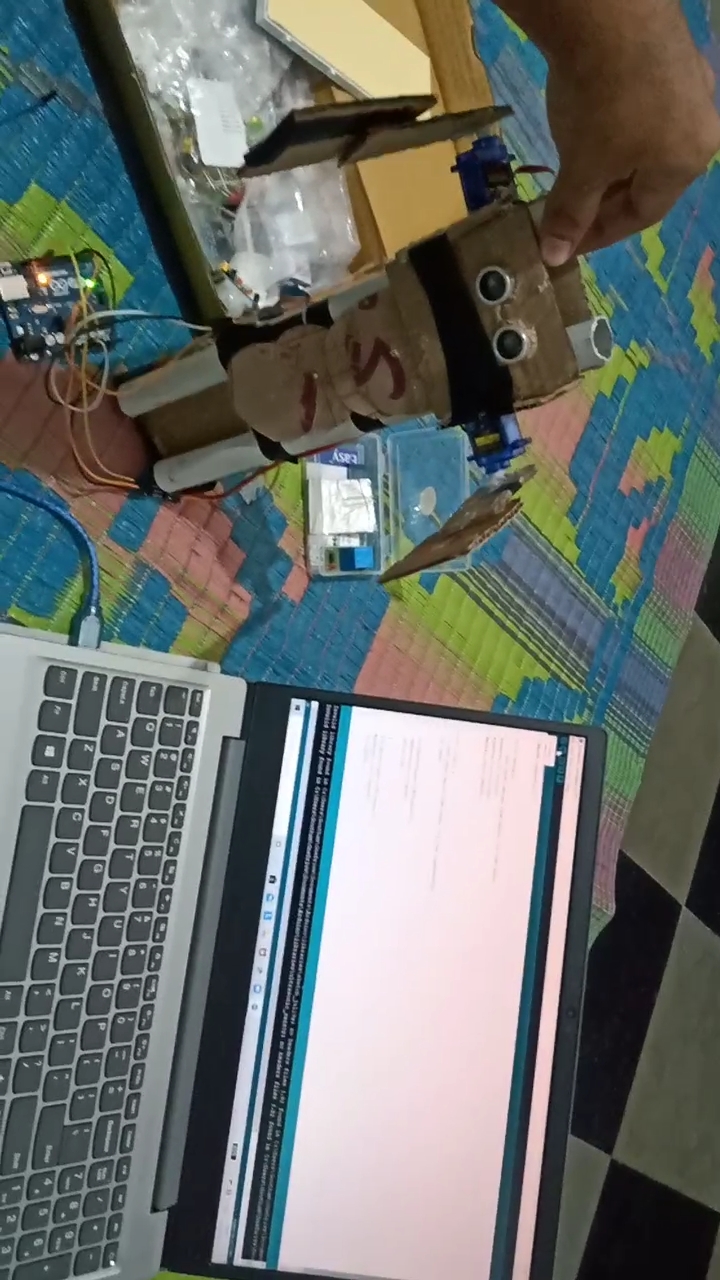
In this post you will know about how to create a robot with e-waste and plastic in just 5 minutes. So, let’s get into the topic.

Materials required :

1.Two small pvc pipes of required lenght

2.card board

3.Glue gun

4.Arduino Uno

5.servo motors

6.Ultrasonic sensors (optional)

Step 1 : Take the two pvc pipes of required length and Round the plaster around the pipes to get straightness while the robot is In standing position

Step 2 : Use glue with card board to cover the legs of the robot

Step 3 : Cut the cardboard as we did or else you can do as your wish.

Step : 4 Here comes the Major part.

Take the arduino and upload the below code into that. If you have any errors while uploading the code just contact us.

Step 5: Paste the glue to the servo motor and then stick those motors to the card board as we did.

Step 6 : To make eyes we have used Ultrasonic and this is not mandatory you can design as your wish.

Step 7 : Give the proper Connections

Step 8 : Take a snap and share it to your friends.😇😇😇

For better understanding you can watch this video..

how to make a robot with plastic and e-waste

For more :

Please visit our website and our YouTube channel

Links part…

You can also follow me on instagram

goutham@03_06

Posted in scienceDIY

How to make your own Mobile charger at home in just 5 minutes.

Hi guys, this is Goutham From DIY blogger. Today we have come across with a new and simple Electronic DIY. So, In this blog we will going to learn about how to make your own Mobile charger at your home in just 5 minutes.

Materials required :

1.9v battery

2.Female USB port

3.2SC5200 NPN power transistor

4.100 ohm resistors

5.7805 regulator

6.Glue gun

7.solider iron

9.Wires

10.100 uF capacitor

11.LED bulb

Circuit diagram

Image will be here

Watch video for better understanding

Video ….

Precautions:

while soldering please be attentive otherwise it may harms your body

For more :

Please visit our website and our YouTube channel

Links of the website and YouTube will be here.

Follow me on.

Posted in Uncategorized

How to make simple and beautiful crafts at home

Hi there, this is Harshitha Gajendrula. In this blog you will learn how to create a simple and beautiful crafts using cardboards and plastic at home with low cost. So, without wasting of your time I’ll tell you about the crafts .

So, let’s getting into the blog…

Required materials :

1.cardboard

2.plastic bottles

3.News papers

4.bangels

Let’s look at my craft in this video

Steps to follow :

1.

2.

3.

4.

5.

For more details please visit harshitha_arts at instagram

Posted in online simulation

Simple project Using PIR sensor

PIR Sensor : Passive infrared rays sensor is a kind of sensor which can detect the human motion with in its surroundings.

How to use PIR sensor with Led and Buzzer

Here is the circuit diagram For PIR sensor with LED and Buzzer

PIR SENSOR WITH LED AND BUZZER

The connections should be made as above mentioned i.e.,

1.PIR sensor GND pin should be connected to GND of Arduino


2.PIR sensor +5V/3.3V pin should be connected to the 5V / 3.3 V of the Arduino

3. PIR signal pin should be connected to the any one of the digital pin on the Arduino board

After giving the connection for the PIR sensor , you should give the connections for LED and Buzzer as follows

LED +ve pin should be connected to the any one of the digital pin on the Arduino board and -ve pin should be connected to the GND of Arduino through 10K ohm resistor to avoid the damage of the LED

In the next step we have to collect the -ve pin of BUZZER to the GND and then +ve pin of the BUZZER to the any one of the digital pin of the Arduino

Now you have successfully completed circuit connection. Let’s get into the code.

Source code :

void setup ( ){

//define the pins here..

PinMode(7,INPUT) //For PIR signal pin

PinMode (8, OUTPUT) //For Led

PinMode(9, OUTPUT)// For buzzer

}

Void setup ( ) {

//now we have to mention the condition here

int pirstat ;

pirstat = digitalRead (7);

if(pirstat==”HIGH”)

{

digitalWrite(8,HIGH); //turn on led

digitalWrite(9,HIGH);// turn on buzzer

} else{

digitalWrite(8,LOW); //turn off led

digitalWrite(9,HIGH); //turn off buzzer

}

}

Posted in online simulation, Uncategorized

Simulation using Tinkercad

Tinkercad is one of the best free online simulator for students and for programers.

Tinkercad is providing the finest features. Students can do their projects through this online simulator with no cost and they can verify their code using Tinkercad.

Ok, let’s see what kind of features Tinkercad is offering to us

1.Circuit Design

2. 3-D design

Let’s talk about the features of the Tinkercad

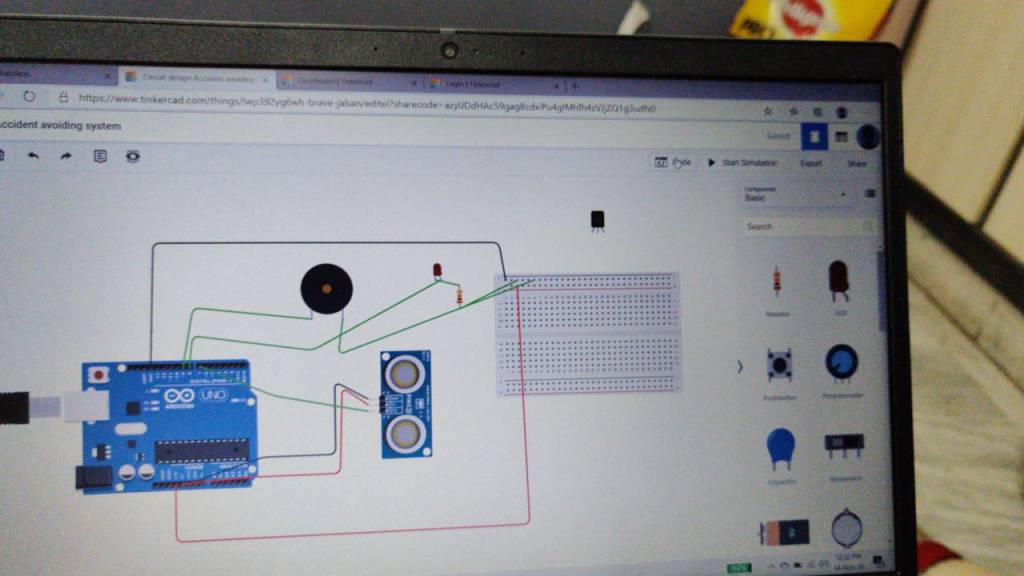
“Circuit Design Using Tinkercad”

Tinkercad providing online simulator for students and for programmers to verify their code.

In circuit design we have the different kind of sensors and the code editor for programing and serial monitor ..

For more Details visit the site https://www.tinkercad.comhttps://www.tinkercad.com/dashboard

The next feature we are going to discussing about

“3-D designing”

Tinkercad is providing 3-D designing through online. So, you can go there and do your 3-D design using Tinkercad

For more details please visit the site https://www.tinkercad.com

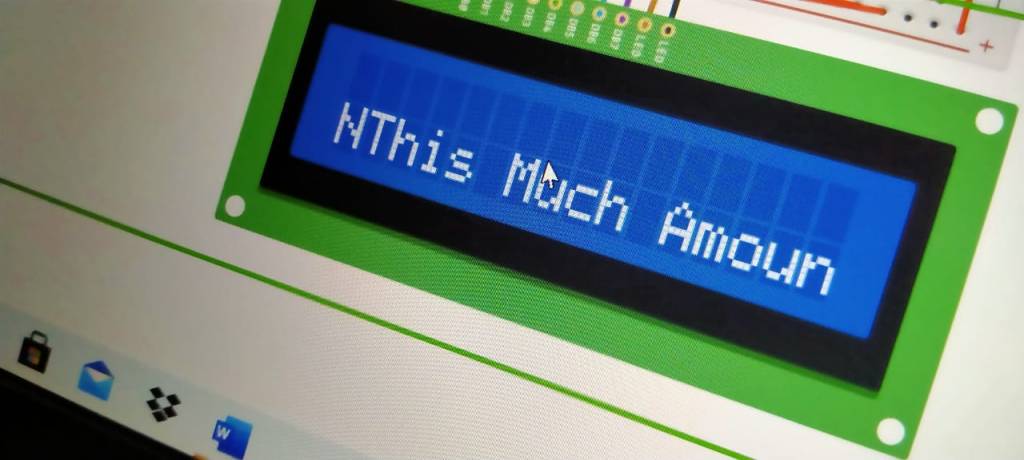
The images of my projects are listed below